RoPA Validation Lifecycle
RoPA validation is the review cycle for a processing activity. The privacy team asks someone to check the record, the reviewer sends feedback, and the privacy team signs it off when satisfied. The va…

RoPA validation is the review cycle for a processing activity. The privacy team asks someone to check the record, the reviewer sends feedback, and the privacy team signs it off when satisfied. The validation grid updates as the status changes.
Roles and permissions
- Privacy team or higher: the Privacy Team and Platform Admin roles. They can raise a validation, choose the reviewer, complete the review, and reschedule it.
- Assigned reviewer: the person named on the validation. They read the RoPA, write comments in the feedback chat, and send the review back. They cannot complete the validation, reschedule it, or replace themselves.
Validation statuses
Status | Meaning |
No status / Validation not required | No review is in progress. |
Not Started | A review has been raised and the reviewer has been asked to look at the RoPA. |
In Progress | The privacy team asked a follow-up and sent the record back. |
Under Review | The reviewer has sent feedback to the privacy team. |
Complete | The privacy team has signed the validation off. |
Raising a validation
For several RoPAs at once
From the processing activity list, the privacy team can select several records, set a due date, and choose the reviewers. Reviewers can be named users, the business unit owners, or the RoPA owners. Each selected RoPA moves to Not Started, and each reviewer receives the RoPA Validation Requested email, including the due date.
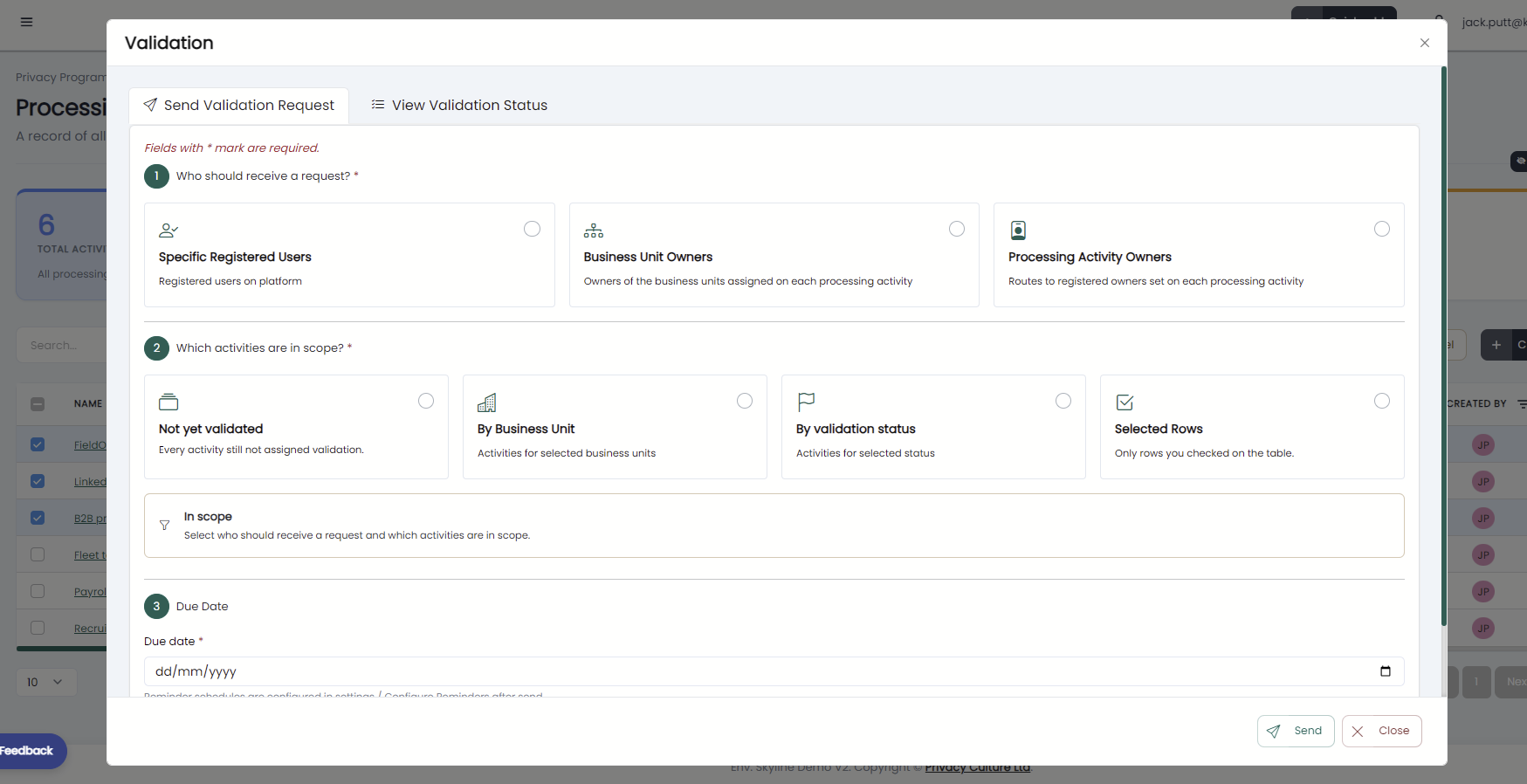
For a single RoPA
Click Validate on the Validation tab to start a review for the open record. If the record already has feedback, the status becomes In Progress; otherwise it becomes Not Started. Choosing the reviewer and due date is a separate step.
- The assignment can be saved only when a due date and at least one reviewer are set.
- Saving a newly added reviewer sends that person the RoPA Validation Requested email.
- Saving an existing reviewer again, or changing only the due date, does not send another request.
The review cycle
- The reviewer receives an email notifying them that they have been assigned to review a RoPA. They can open the RoPA, review its information and add comments for where they spot any out-dated or missing information. They can then click Request Review. The status becomes Under Review, and Privacy Team users receive the an email alerting them of this.
- The privacy team reads the comments, edits the record if needed, and can reply in the same chat. A privacy team comment while the status is Under Review and it moves the record to In Progress and emails the reviewers.
- The reviewer answers and clicks Request Review again. The status returns to Under Review and the privacy team is emailed again.
- When satisfied, the privacy team clicks Complete Validation. The status becomes Complete, the completion date is stored, and the RoPA owners receive notification that the process has been completed.
Actions and buttons
Request Review
Shown only to the assigned reviewer, and only while the status is Not Started or In Progress. It stays disabled until the latest feedback comment was written by that reviewer. A confirmation asks whether to set the status to Under Review. Confirming emails the privacy team. If the reviewer is also in one of those roles, they are left off that email.
Send feedback
The button beside the comment box adds the comment to the chat for everyone viewing that RoPA, including Quick View.
- A comment from the assigned reviewer does not change the status and does not send an email. They still need to click Request Review.
- A comment from someone who can assign reviewers (and is not the assigned reviewer) emails the reviewers while the status is Not Started, In Progress, or Under Review. Only an Under Review comment also moves the status to In Progress.
- A comment on a Complete validation stays in the chat. It does not reopen the review or send an email.
Complete Validation
Asks for confirmation, then marks the review complete and emails the owners. It is disabled when the review is already Complete or has not been started. On the validation board, only people who can complete a validation can move a card into Complete.
Reschedule Validation
Asks for a new due date, pre-filled with the current date. Confirming saves that date, returns the status to Not Started, clears the completion date, keeps the same reviewers, and emails each reviewer the RoPA Validation Requested email with the new deadline.
Configure Reminders
Appears only on the full record, and only for people allowed to create a validation. It sets automated reminder emails for that RoPA and does not change the status. It defaults back to platform settings if not configured.
The privacy team can complete from Not Started, In Progress, or Under Review. They do not have to wait for Request Review, and they do not see that button .Quick View includes the Validation tab, the feedback chat, Request Review, Complete Validation, and Reschedule Validation. It does not include Configure Reminders.
Please rate this article:
ROPA Import

